
Instructor Guide
A quick step-by-step introduction for instructors and institutions
LearningClues aims to streamline the process of answering common course-related questions and offer personalized study resources, ultimately empowering students and potentially saving you time.
This guide will clarify the expectations for setting up LearningClues, effectively using it in your class, and providing feedback for its continuous improvement.
To make it easier for you to review, we have divided up the guide into the following sections:
Introduction to LearningClues
Welcome and Purpose
Welcome to LearningClues, a new tool designed to enhance the learning experience for your students and provide valuable support for you as an instructor.
Key Benefits for Faculty
Automated Q&A: LearningClues can answer common student questions about course content and logistics, freeing you to focus on more complex inquiries and deeper instructional support.
Efficient Resource Direction: Students receive immediate, cited answers directly from your course materials, reducing the need for repeated explanations.
Personalized Learning Support: PracticeClues offers a powerful way for students to engage with personalized practice based on their needs, reinforcing their understanding of course concepts.
Core Components of LearningClues
StudyClues: An AI-powered question-answering tool that provides instant responses with citations from your course materials.
PracticeClues: A feature that generates personalized practice questions and concept maps to help students assess their understanding and target their study efforts.
Getting Started: Setting up LearningClues
Prerequisites for Effective Use
Comprehensive Course Content is Key: For LearningClues to be an effective tool, it must have access to all relevant course materials. This includes, but is not limited to:
Lecture slides and presentations
Video recordings
Assigned readings and articles
Problem sets and assignments
Crucially, a fully fleshed-out and detailed syllabus. The syllabus often contains answers to many common student questions about course policies, grading, schedules, and expectations.
Clean Up Your Course Site: Before LearningClues is enabled, please ensure you have removed any outdated or irrelevant files, pages, or modules that may have been copied over from previous course versions. LearningClues will index all published content, so a clean and up-to-date site ensures the most accurate and relevant information is provided to students.
Automatic Video Transcripts: You do not need to worry about transcribing your videos. Most media sources provide built-in transcriptions that the LearningClues system can acquire during indexing. If automatic video transcripts are not present or the videos come from novel media sources, the LearningClues team will work with [School/Unit Name] to create transcripts for all videos within your course(s) site, which LearningClues will then use to provide answers from video content.
Understanding Content Indexing: LearningClues works by "reading" and indexing the content you make available to students within your course(s) site. It learns from this material to provide accurate and contextually relevant answers. Therefore, if a piece of information is not in your course, LearningClues cannot answer questions about it. Rest assured, all course content indexed by LearningClues remains private to your specific course and its enrolled students, and your materials are not fed into any AI models outside of [School/Unit Name]. Furthermore, LearningClues only indexes content that has been made available to students. If you have documents or lecture recordings that have been added to the LMS that are meant to be released later in the semester, LearningClues refrains from indexing/processing this content until the release date for students.
Syllabus for Concept Maps: A well-structured syllabus is not only vital for StudyClues but also foundational for PracticeClues' concept mapping feature. LearningClues can automatically generate concept maps (learning objectives) directly from your syllabus, which then drive personalized practice questions. We highly recommend this automatic process for efficiency, though manual creation is also an option (more details on this in Section 3).
Accessing LearningClues at Your Institution
[School/Unit Name] [Group Name / i.e. “Digital Enablement”]: LearningClues will be enabled in your course site in collaboration with the LearningClues team. You do not need to take any action to enable it in your course settings.
Launch LearningClues: Once enabled, "LearningClues" will appear in your course’s left navigation menu. Simply click on "LearningClues" in your course navigation to launch the tool.
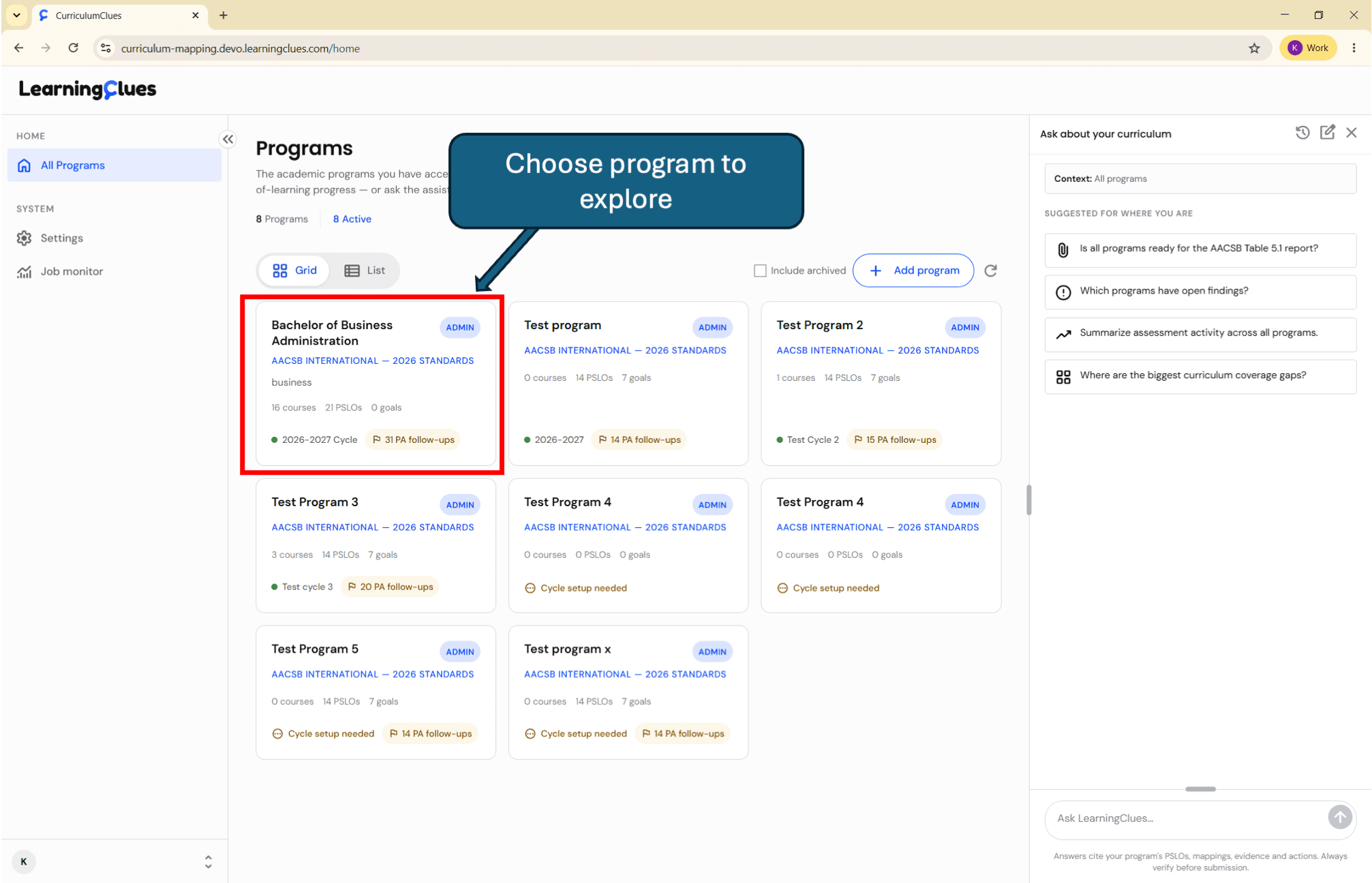
Initial Configuration / Data Ingestion
The first time you click on LearningClues in your course, the system checks whether your course content has already been indexed. In most cases, your IT team will have completed this step during setup. If not, the indexing will begin automatically and may take a few moments, especially for content-heavy courses.
Once complete, LearningClues will be ready to answer questions based on your uploaded materials.
There are no additional configuration steps required from you at this initial stage; LearningClues automatically pulls content from your published course files, pages, assignments, and syllabus.
Throughout the semester, LearningClues also periodically syncs newly added video and LMS content (every 6 hours). This means that as new lecture recordings and course documents are added, LearningClues will automatically index and process these materials so that both StudyClues and PracticeClues are up-to-date.
Running Your Class with LearningClues
Utilizing StudyClues (AI-Powered Q&A)
Faculty Action: Test and Verify:
We highly recommend that you personally test StudyClues early and often. Ask a range of questions that students are likely to pose about course content, policies, assignments, and exams.
Review the generated answers and the accompanying citations. This allows you to verify the accuracy, tone, and alignment of responses with your teaching style and course objectives.
If you find answers that are inaccurate or not to your liking, utilize the “Contact Support” button within LearningClues to flag them. This helps refine the tool for your course and for future use.
Student Experience:
Students can access StudyClues directly from your course navigation and ask questions at any time.
Answers provided are always cited directly from your course materials, allowing students to see the source of the information.
The tool offers improved conversationality, remembering context from earlier questions and maintaining chat history for a more natural interaction.
Faculty Insights from StudyClues (Analytics):
LearningClues provides faculty with insights into student engagement. You can view anonymized data on the most frequently asked questions by your students. This data can be incredibly valuable for:
Identifying areas where course materials might need further clarification or expansion.
Pinpointing concepts that students are frequently struggling with.
Informing your in-class discussions or review sessions to address common points of confusion.
Encouraging Student Use:
Include in your Syllabus: Add a brief section to your syllabus introducing StudyClues for immediate answers to common questions.
Announce in Class: Mention StudyClues during your lectures or section meetings, encouraging students to use it as a first resource before reaching out to you or your TAs for routine inquiries.
Model its Use: Demonstrate how to use StudyClues in class or during office hours by asking a sample question to illustrate its capabilities.
Leveraging PracticeClues (Personalized Learning & Quizzing):
Faculty Action: Setting up Concept Maps
Automatic Generation (Recommended): LearningClues can automatically create a concept map (a structured outline of key learning objectives and topics) directly from your course syllabus. This is the most efficient way to get started. To create the concept map, select a file from your course (preferably a detailed, well-structured syllabus) and click “Generate Mapping.” Once the concept map has been automatically generated, you may review or edit it to ensure it accurately reflects your course's learning goals. If an automatically generated concept map is not satisfactory, you can always select a different file and generate a new concept map to review prior to final confirmation.
Manual Creation: If you prefer, you also have the option to manually build and define your concept map within the LearningClues interface.
Important Note: Once the concept map has been confirmed, it cannot be edited during the semester. Therefore, it is important to review the concept map to ensure that it accurately aligns with your course learning objectives before final confirmation.
Faculty Action: Reviewing Generated Questions
Once your concept map is established, PracticeClues will generate personalized practice questions based on these learning objectives and your course content.
You will have the opportunity to review these AI-generated practice questions. It is crucial to understand that these question banks are fully editable. You have complete control to remove questions to ensure their quality, accuracy, and pedagogical relevance. After a new lecture is added to the LearningClues system and has been processed, questions are immediately generated and are automatically released to students 24hrs later.
Faculty Action: Reviewing Student Responses (Optional)
While student performance on individual practice tests is private, you can view the number of correct/incorrect answers and attempts for each question within the dashboard. This can provide high-level insights into areas where students might be collectively struggling, informing your teaching adjustments.
Student Experience:
Students can engage with PracticeClues to take self-assessments and practice quizzes tailored to their chosen learning objectives.
Questions come with hints and explanations, reinforcing their learning.
Students receive a measure of their proficiency in each learning objective after each test, helping them identify areas where they need to focus their study efforts.
These practice questions are optional and are designed solely to strengthen learning and provide self-assessment opportunities; they are not graded.
Encouraging Student Use:
Position PracticeClues as a valuable, low-stakes study tool that helps reinforce understanding and prepare for assessments.
Suggest specific times for students to use it, e.g., after each major topic or before a midterm.
Best Practices and Pedagogical Tips
Pre-Class Engagement: Encourage students to use StudyClues to ask questions about assigned readings or videos before class. This can help them come to class better prepared and allow you to focus on deeper discussions.
Formative Assessment: Leverage PracticeClues as a low-stakes formative assessment tool. Suggest students use it to test their understanding after each major module or before a quiz, helping them identify knowledge gaps early.
Identify Learning Gaps: Utilize the "Faculty Insights" from StudyClues (most frequently asked questions) to pinpoint areas where students are commonly confused. This data can inform your lecture adjustments, provide topics for review sessions, or guide the creation of supplementary materials.
Supplement Office Hours: Direct students to StudyClues for immediate answers to common questions, reserving your office hours for more complex conceptual discussions and personalized guidance.
Managing LearningClues Availability (Scheduling Downtime)
Professor's Discretion: You have the ability to schedule downtime for LearningClues, effectively turning off its functionality for specific periods.
Recommendation for Exams: We strongly recommend scheduling downtime for LearningClues during exams, particularly for online assessments. This prevents students from using the tool to look up answers during a timed, proctored assessment, maintaining academic integrity. You can manage LearningClues availability through the instructor dashboard within the LearningClues interface in your course. (Specific instructions or a link to a quick guide will be provided here.)
Collaborating with Your Teaching Assistants (TAs)
If you have teaching assistants for your course, we strongly encourage you to advise them to also use and familiarize themselves with LearningClues. Their understanding of the tool will enhance their ability to support students and address questions efficiently.
We also recommend that TAs join you in any meetings with [School/Group Name] regarding LearningClues. This ensures a consistent understanding of the tool's capabilities, best practices, and any ongoing updates or support processes across your teaching team.
Feedback, Support, and Collaboration
Providing Feedback on LearningClues
Your feedback is invaluable for the continuous development and refinement of LearningClues. We aim to make this tool as effective as possible for both faculty and students.
We will provide updated faculty surveys, likely simplified for ease of completion, either integrated into end-of-course evaluations or as quick online polls. [School/Unit Name] will also maintain open channels for direct qualitative feedback on your experience.
You can also utilize any internal feedback options within the LearningClues interface (e.g., flagging incorrect answers).
Support Structure
[School/Unit Name] Support: Your primary point of contact for assistance with course integration issues, general onboarding questions, best practices for course setup within courses and strategic advice on leveraging LearningClues in your pedagogy. [School/Unit Name] will also manage video transcription for your course. [School/Group Name] will escalate any technical issues or complex inquiries about core LearningClues functionality directly to LearningClues Support as needed.
LearningClues Support: (Generally accessed via escalation from [School/Group Name] Handles deep technical issues related to the LearningClues platform itself, specific inquiries about how LearningClues indexes content, and advanced feature questions.
Faculty Collaboration: Your active participation is crucial for the success of LearningClues in your course. This includes:
Ensuring content quality and completeness in your course(s)..
Reviewing and refining AI-generated questions for PracticeClues.
Encouraging student adoption and providing feedback on student usage patterns.