
CurriculumClues Trial Pilot
A step-by-step introduction with example tasks
Welcome to the CurriculumClues Pilot! You're exploring CurriculumClues using a simulated Bachelor of Business Administration program — pre-loaded with realistic courses, PSLOs, and evidence — so you can see the system work before touching your own program's data.
This guide walks through five things CurriculumClues does: asking questions of your curriculum, tracking coverage across your program, reviewing the evidence behind each rating, checking status course by course, and pulling a live AACSB Table 5.1 readiness report. Each section ends with a short exercise — try it in the simulated program as you go.
Work through it at your own pace over the next two weeks. When you're done, we'll set up a short call to see what you found and talk about whether a pilot with your own program is the right next step.
Getting Started
Every AACSB program you manage lives on one dashboard. This section shows how to open a program and land on its Overview.
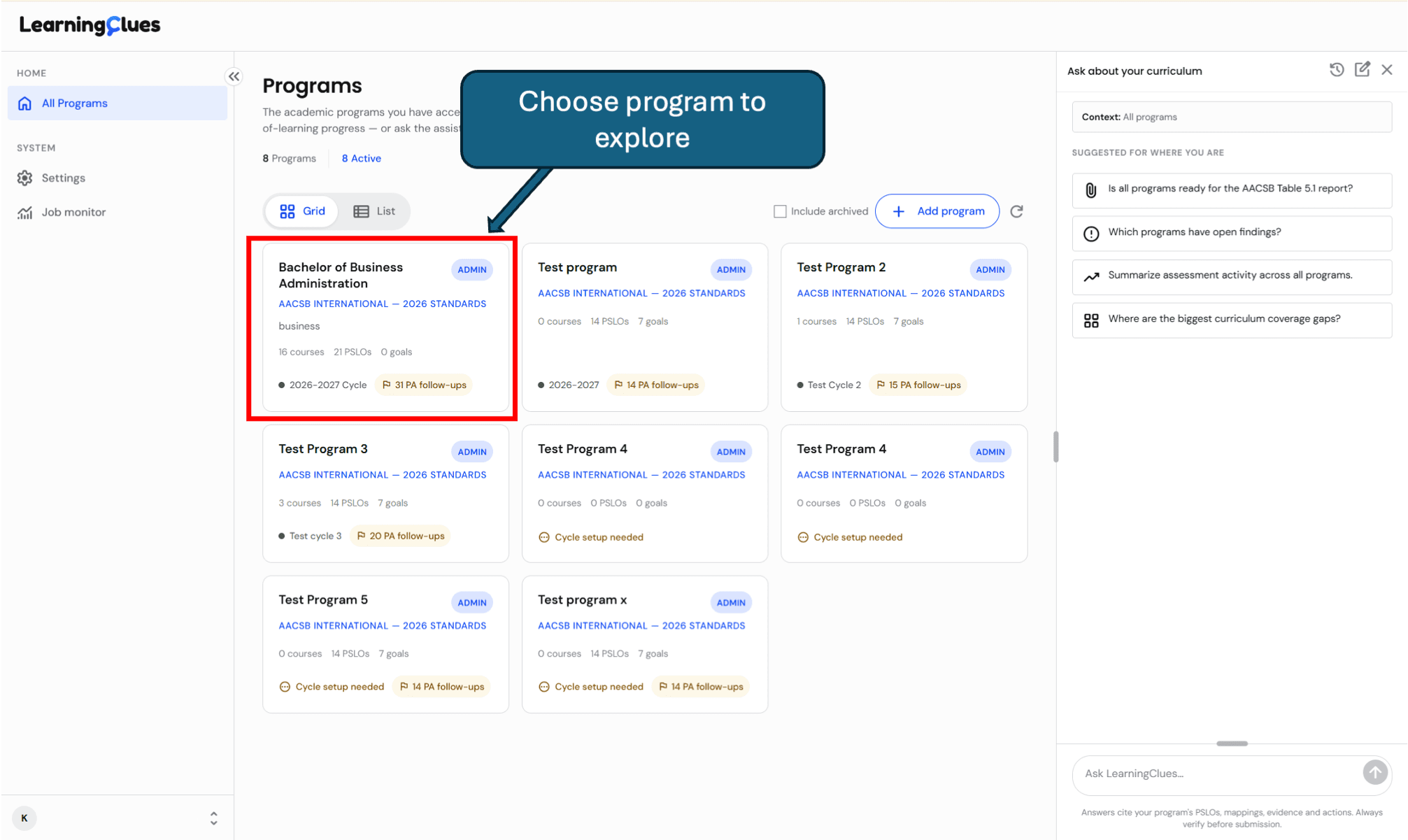
Choose a Program to Explore
All Programs lists every academic program you have access to — its accreditation standard, how many courses and PSLOs it has, and where it stands in its current assessment cycle. Open a program card to enter its dashboard, where you'll find its curriculum map, outcomes, and assurance-of-learning progress.
In this guide, we'll use the simulated Bachelor of Business Administration program.
Try it yourself
Open the Bachelor of Business Administration program and note how many courses, PSLOs, and open issues it shows on the Overview page before you continue.
Ask Your Curriculum
Instead of hunting through spreadsheets, ask CurriculumClues direct questions about your program in plain English and get answers grounded in your actual courses, mappings, and evidence.
Meet Your AI Assistant
Every program page includes an “Ask about your curriculum” panel on the right. It already knows your PSLOs, course mappings, and evidence, and it suggests a few questions to get you started — like whether your program is ready for the AACSB Table 5.1 report, or where your biggest coverage gaps are.
Click into the edit box any time to ask your own.

Ask a Real Question
Type a question the way you'd ask a colleague — for example, “Which courses cover communication skills (including assessments)?”
CurriculumClues doesn't need you to name a course or a PSLO number first; it searches your whole curriculum map for you.

Read a Cited Answer
The answer comes back as a short narrative plus a source table you can open alongside it — here, every course that touches communication skills, what's specifically covered, and which assessments back it up.
Notice the assistant also flags what it doesn't yet know (evidence still recorded as an “inferred skeleton,” meaning targets and results haven't been entered for this cycle) and offers next steps, like narrowing to direct assessments only.

Refine With a Follow-Up
You don't have to start over to dig deeper — reply in the same chat the way you would to a person. Here, typing “yes, look at direct assessment only” tells the assistant to narrow its previous answer rather than search from scratch.

Get the Narrowed Answer
The assistant returns a tighter answer — three courses with direct communication-skill assessment evidence, each tied to specific PSLOs.
This back-and-forth is the fastest way to go from a broad question to the specific evidence you need for a report or a committee conversation.

Try it yourself
Ask your own first question about the BBA program, then send one follow-up to narrow the answer — notice how the assistant keeps the earlier context.
3. Coverage Heatmap
The Coverage heatmap is the single view of how every PSLO is scaffolded across every course — introduced, reinforced, or mastered and assessed — and where the gaps are.
Open the Coverage Heatmap
Coverage plots your PSLOs against your courses in one grid. The legend across the top shows what each color means — Introduced, Reinforced, Mastered + Assessed, or No coverage — and a Structural problems banner surfaces anything that needs attention before it becomes a reporting gap.I

Hover for an Evidence Summary
Hover over any cell to see, without leaving the page, what's behind that rating — the coverage level, the type of evidence (direct vs. indirect, individual vs. aggregate), which assignment and rubric it's measured by, and whether a faculty member has verified it yet.

Click for the Full Evidence Receipt
Click a cell to open its full Evidence Receipt: the signature assignment and rubric behind the rating, its faculty-verification status, and — under “Why this is tagged” — the AI's confidence score and reasoning for why that assignment counts as evidence for that outcome.
Nothing here is final until a faculty member reviews it; “Pending verification” means it's still an AI-suggested match awaiting a human sign-off.

Try it yourself
Find a cell marked Introduced only, open its evidence receipt, and see what additional assessment would move it to Mastered + Assessed.
Course View
Coverage shows the whole program at once; Courses shows the same evidence one course at a time, in terms a faculty member would recognize.
Drill into a Single Course
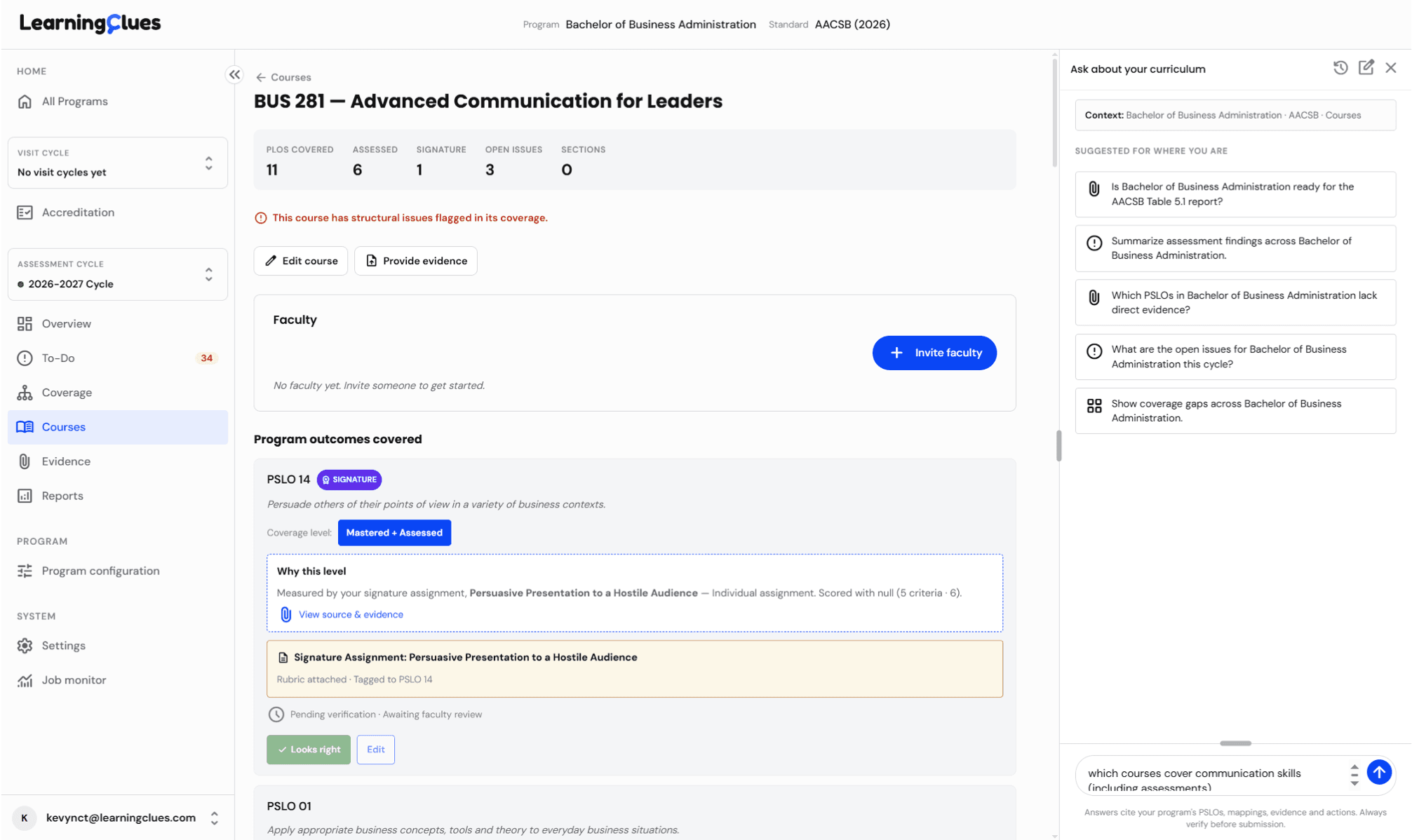
The Courses tab lists every mapped course with its coverage, signature assessments, and any open issues at a glance. Open a card — here, BUS 281, Advanced Communication for Leaders — to see its full status.

Review Coverage and Confirm Evidence
Each course page lists the PSLOs it covers, the coverage level for each, and — under “Why this level” — the specific signature assignment and rubric the rating is based on.
This is where a faculty member reviews the AI's suggested mapping and either confirms it (“Looks right”) or edits it — which is what ultimately turns “pending verification” into confirmed evidence.
Try it yourself
Open a course with an open issue flagged, find one PSLO's “why this level” explanation, and decide whether you'd click Looks right or Edit.
Reports & Table 5.1 Readiness
Reports turns everything you've mapped, assessed, and verified into the actual documents AACSB asks for — and tells you what's still missing before you can rely on them.
Open Reports
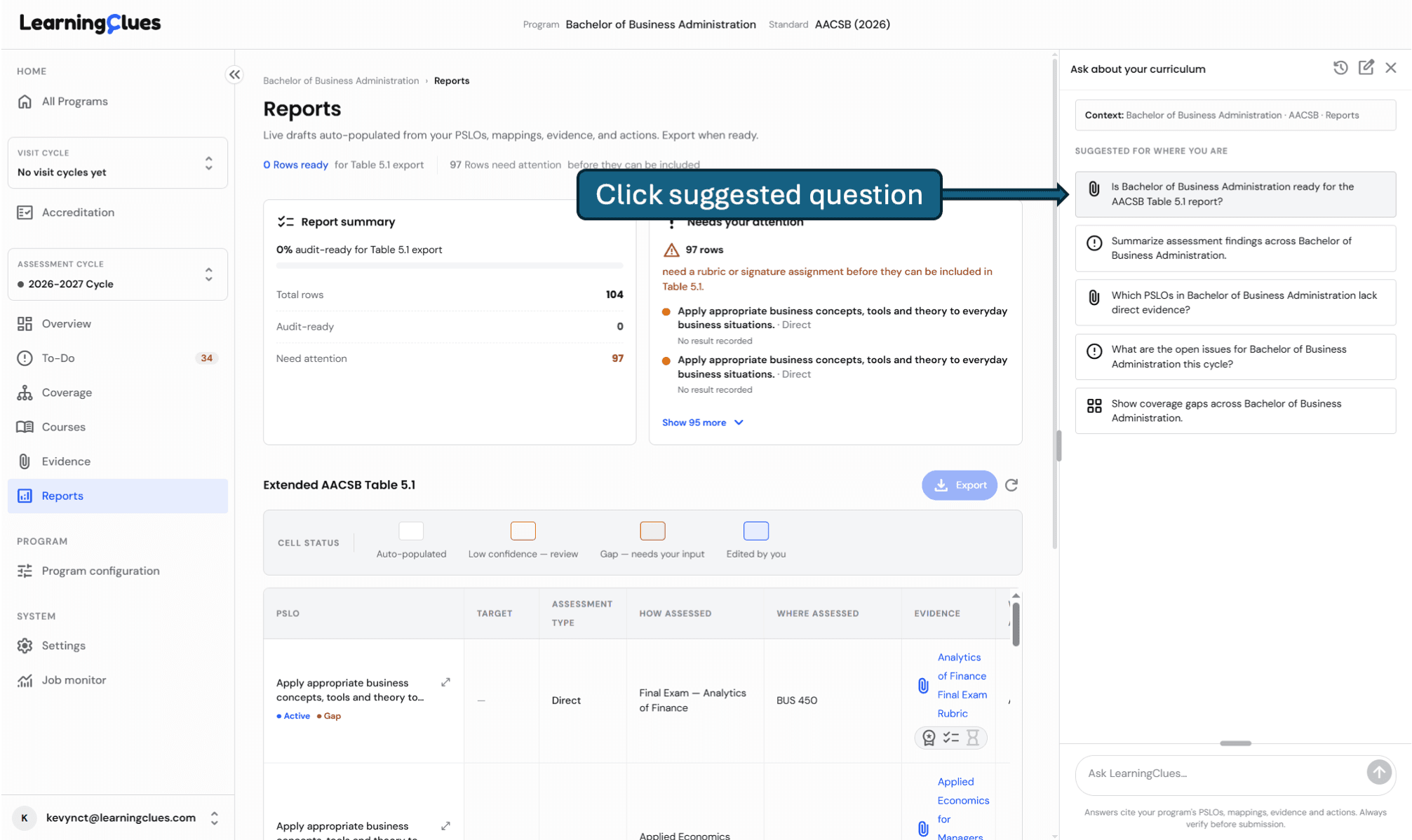
Reports give you a live, auto-populated draft of your Extended AACSB Table 5.1 — built directly from your PSLOs, mappings, and evidence, not re-typed by hand. A summary at the top shows what percentage is audit-ready today, and a color key marks every cell as auto-populated, low-confidence, a gap needing your input, or already edited by you.
Ask a Suggested Question
The same “Ask about your curriculum” assistant follows you into Reports, with questions suggested specifically for this page — like whether your program is ready for the Table 5.1 report. Click any suggested question to run it immediately.
Get Your Readiness Assessment
The assistant answers in plain terms: what's usable today, and a specific list of readiness gaps to fix — down to exactly which rows need a rubric, a signature assignment, or recorded results before they can go in the report.
That specificity is the point: instead of a vague “not ready,” you get a punch list you can hand to whoever owns each gap.

Try it yourself
Ask “Is [your program] ready for the AACSB Table 5.1 report?” and see how many gaps come back — then open Reports directly and see if you'd have found them as quickly on your own.
What's Next
That's the core loop: ask a question, check coverage, drill into a course, confirm evidence, and pull a report — all grounded in your program's real courses, not a spreadsheet you maintain by hand.
Spend your two pilot weeks exploring the simulated BBA program with the exercises in this guide. When you're ready, we'll set up a short call to see what you found and talk about whether a pilot with your own program's data is the right next step.